


Phone to TV HDMI USB-C MHL
3.3117.00 Reviews
App Specs
- Version
- 2.0
- Updated On
- License
- Free
- Downloads
- 100,000+
- Developer
- Appfairly LLC
- Categories
- Libraries & Demo
- Platform
- Android
Screenshots
 Analysis by AppCompare
Ever wished you could mirror your phone screen to your TV and enjoy your favorite apps, videos, or games on a much bigger screen? Well, say hello to the Phone to TV HDMI USB-C MHL app. This handy tool promises to make streaming from your phone to your TV as easy as pie. Let’s dive into how it works and whether it lives up to the hype.
The first-week appeal: a quick route to the big screen
The immediate attraction is easy to understand: you have something on your phone that would be more useful or enjoyable on a TV, and you want to avoid relying on Wi-Fi. The app is free, made by Appfairly LLC, and sits in the practical end of the libraries-and-demo category. Its purpose is narrow, which is a benefit when you only need to check whether a wired connection is a possibility rather than set up a broader media system.
A realistic use is a small get-together where someone has photos or a clip on their phone and wants everyone to see it without passing the handset around. A wired setup can also make sense in a room where wireless mirroring is inconvenient, or when you want to avoid making the viewing experience depend on the local network. The app’s central value is helping you think through the phone-to-TV connection; the cable and device compatibility still determine whether the result works.
Before buying an adapter, I’d check the exact phone model’s video-output support and the TV’s available HDMI input. A USB-C port does not automatically mean a phone can send video through it, and an adapter labelled MHL is not a universal guarantee. That compatibility check is the most useful early step: it can save you from buying hardware for a connection the phone cannot make.
Getting Started with Phone to TV HDMI USB-C MHL
Setting up the Phone to TV HDMI USB-C MHL is pretty straightforward. First things first, make sure your TV supports HDMI input and your phone is compatible with USB-C. You’ll need an MHL adapter (Mobile High-Definition Link) to connect your phone to the TV. Once you have the hardware in place, it’s time to get the app up and running.
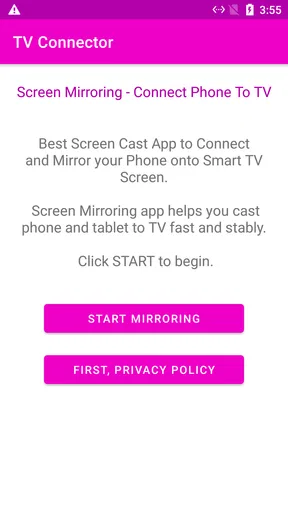
The app itself is user-friendly and guides you through the setup process step-by-step. After downloading the app from the Play Store or App Store, it offers a clean interface with simple instructions. I found it quite intuitive, even for someone who isn’t particularly tech-savvy.
Usability and Performance
Once connected, the app allows you to mirror your phone display directly onto the TV screen. The quality of the stream is impressive, with high-definition output that makes watching videos or playing games a joy. I tested it with a variety of content—YouTube videos, Netflix shows, and even a few mobile games. The transition was smooth, and there was minimal lag, which is a huge plus.
Worth Reading Before You Choose

EA SPORTS FC Mobile 26 Is a Bigger Football Game, but It Takes Time

Flipboard Shows What News Apps Must Do Beyond the Feed

Switching to Android Auto Means Rethinking Your Driving Routine

Google Calendar Makes a Crowded Week Easier to Manage

Ludo King Makes the Most of the Minutes Between Plans

Baby Panda World Brings Quick Play to Modern Phones, but Its Game Library Feels Busy
What's really neat is that the app doesn’t just limit you to video content. You can also display photos, documents, and apps. Imagine showcasing a family photo album or a presentation directly from your phone—pretty nifty, right?
Choosing the right occasion and workflow
For a presentation or a photo slideshow, I’d prepare the material before connecting: close unrelated apps, set the phone to a comfortable brightness, and keep the document or album ready to open. That little bit of preparation matters because mirroring shows the phone’s display, not just the one item you intend to share. Notifications, navigation between apps, and accidental taps may also appear on the TV, so I’d turn on a suitable focus setting if the phone offers one.
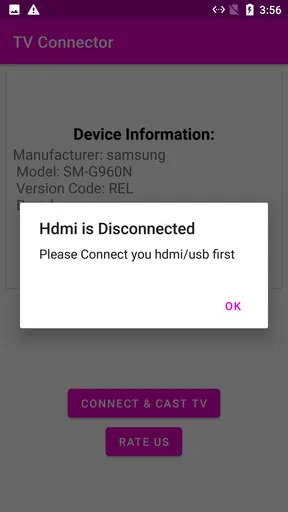
For a video, a wired connection can be appealing when you want to avoid Wi-Fi-based casting, but it does not eliminate every possible snag. The phone still has to support video output, the adapter must be compatible, and the TV needs to be on the correct HDMI input. If the screen stays blank, I’d check those points in that order, then reseat the cable before assuming the app itself is at fault.
There is also a useful trade-off between convenience and flexibility. A cable ties the phone to the television, which can be awkward if you want to move around or keep using the handset. On the other hand, it avoids relying on a wireless discovery process and can be a straightforward option for a fixed viewing spot. I’d choose it for a planned, stationary session rather than casual viewing where everyone expects to control playback from across the room.
Compatibility and Features
Compatibility is key with these kinds of apps, and the Phone to TV HDMI USB-C MHL doesn’t disappoint. It works with a wide range of devices and supports popular video formats. Whether you’re using an Android or iOS device, the app is designed to handle the transition seamlessly. However, it’s always a good idea to double-check your device’s compatibility to ensure everything runs smoothly.
Another feature worth mentioning is the app’s ability to maintain the phone’s battery life during use. Many apps that require continuous streaming can be battery drainers, but this one seems optimized to keep your device running longer. Plus, the app provides options to control playback directly from your phone, adding to the convenience.
Month-to-month value and the alternatives
The app’s lasting value depends less on how exciting mirroring feels the first time and more on whether you regularly have a reason to show phone content on a television. If that happens often—sharing photos with family, walking someone through a document, or putting a mobile app on a larger display—the simple wired approach may earn a place in your routine. If you only try it once, the app may not become something you open every week, and that is a fair outcome for a focused utility.
It is useful to compare this approach with the alternatives. Built-in casting and wireless screen mirroring can be easier when the phone and TV already support them, because there is no cable tethering the handset. A streaming device can be a better fit if your main goal is watching services from the TV itself rather than duplicating a phone screen. A direct HDMI setup is most attractive when you specifically need the phone’s display and want a connection that does not depend on Wi-Fi. None of these options is automatically best; the right choice depends on the devices already in your home and what you plan to show.
One subtle practical point is that mirroring the whole screen and casting a single video are not the same workflow. Full-screen mirroring is useful for documents, photos, and apps, but it also exposes whatever appears on the phone. A service-specific cast may keep the phone free for other tasks, when supported. I’d use full mirroring for content that genuinely benefits from seeing the handset’s whole display, and choose a TV app or cast option when I only want to watch a supported video.
Maintenance, fatigue, and who should skip it
Keeping this setup dependable is mostly a matter of looking after the physical connection and remembering which adapter works with which device. I’d store the cable and adapter together, avoid bending the connector sharply, and test the arrangement before a presentation or visit rather than discovering a compatibility problem in front of an audience. If more than one person in a household might use it, a short note with the required input and adapter can save repeated troubleshooting.
The likely source of fatigue is not a complicated daily routine; it is the small friction of connecting hardware, selecting the TV input, and keeping the phone close enough to the screen. It can also be disappointing if someone expects the app to make any phone compatible or to replace a TV’s own streaming apps. Those are different jobs. People who prefer a wireless, hands-off setup, or who mainly watch content through a television’s built-in services, may be happier with casting or a streaming device.
Phone to TV HDMI USB-C MHL is rated for Everyone, and it has an average rating of 3.3 from around 2.2 thousand ratings, alongside 117 written reviews. It has over 100 thousand installs and is currently at version 2.0, with Android 5.0 as its minimum operating system. Those figures suggest a modest, specific utility rather than an essential app for every phone owner. I’d treat the rating as a reason to keep expectations practical: compatibility and the hardware connection are central to the experience, so the app cannot compensate for a phone or adapter that does not support video output.
Final Thoughts
Overall, the Phone to TV HDMI USB-C MHL app is a fantastic tool for anyone looking to enhance their viewing experience. Whether you’re a movie buff, a gamer, or someone who just loves to share content on a bigger screen, this app offers a reliable and efficient solution. The setup is easy, the performance is solid, and the range of compatible devices makes it accessible to most users.
While there are other methods to mirror your phone to a TV, few offer the simplicity and effectiveness of this app. So next time you’re planning a movie night or want to showcase something special, give this app a try. It might just become your go-to solution for streaming content from your phone to your TV.
Does it earn a lasting place?
My recommendation is conditional: it makes sense for someone who has confirmed compatible hardware and repeatedly needs a phone screen on a TV, especially for photos, documents, or demonstrations. It is less compelling as a permanent habit if wireless mirroring already works smoothly in your home or if you rarely share phone content. Since the app is free, trying it is an easy first step, but I would verify the phone and adapter combination before spending money on accessories.
What should you check if the connection fails? Start with the phone’s video-output capability, then confirm that the adapter matches the phone and connection standard, and finally select the TV’s correct HDMI input. Will it work without Wi-Fi? The wired route is meant to avoid depending on Wi-Fi, but the cable, adapter, phone, and TV still need to be compatible. Is it best for movies? It can suit a movie session when the phone can output the video, but for frequent viewing I’d compare it with a TV app or supported casting option, which may be more comfortable than leaving a phone connected.
After the novelty wears off, the deciding question is simple: do I have recurring moments when showing the phone’s actual screen is more useful than opening something directly on the TV? If yes, this is a focused tool worth keeping available. If not, it may remain an occasional helper rather than a regular part of your setup—and that is the honest measure of its value.
Pros
- Seamless streaming experience.
- Supports 4K resolution.
- Easy plug-and-play setup.
- Compatible with most devices.
- No additional apps required.
Cons
- Requires specific cables.
- Some devices may not be supported.
- Limited to HDMI output only.
- No wireless connectivity option.
- Can drain phone battery quickly.
FAQs for Phone to TV HDMI USB-C MHL
What is Phone to TV HDMI USB-C MHL, and how does it work?
Phone to TV HDMI USB-C MHL is an application designed to facilitate the connection between your mobile device and a TV using an HDMI cable. The app supports USB-C and MHL technology, allowing you to mirror your phone's screen onto a larger display. This is particularly useful for streaming videos, playing games, or sharing presentations on a bigger screen.
Do I need additional hardware to use Phone to TV HDMI USB-C MHL?
Yes, additional hardware is required. You will need an HDMI cable and a compatible adapter that connects your phone’s USB-C or MHL port to the HDMI input on your TV. The app itself helps in configuring the connection and ensuring a smooth transfer of video and audio from your device to the television.
Is Phone to TV HDMI USB-C MHL compatible with all smartphones?
Not all smartphones are compatible with Phone to TV HDMI USB-C MHL. It primarily supports devices with USB-C and MHL capability. Ensure your device supports these standards before attempting to use the app. It's advisable to check the device specifications or consult the manufacturer's documentation for compatibility details.
Are there any limitations or restrictions when using Phone to TV HDMI USB-C MHL?
The main limitation is the need for compatible hardware and cables, which may not be readily available for all devices. Additionally, the quality of the mirrored content depends on the device's resolution and the TV. Some users may also experience slight lag or latency, especially with high-definition content or during gaming.
Is there a cost associated with using Phone to TV HDMI USB-C MHL?
The app itself may be free or available at a nominal cost, but users should be aware of potential expenses related to purchasing compatible cables and adapters. It's also worth checking if the app includes any in-app purchases or subscriptions for additional features or services.


